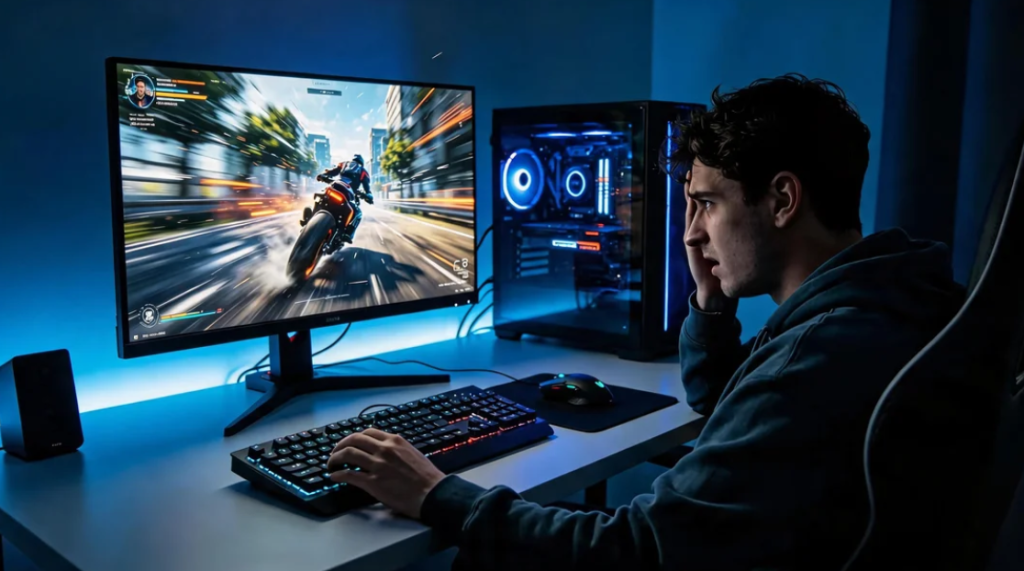
PC game stuttering performance issue on gaming desktop
If you often encounter stuttering while playing PC games — the game freezes for a split second, frames jump up and down, and movement feels choppy — you are not alone. Game stuttering does not always mean your computer is too old. Many problems come from software settings, driver conflicts, background programs or wrong in‑game options. In this article, we break down common causes and practical fixes you can try step by step.
What is game stuttering exactly?
Stuttering is different from low FPS. Low FPS means your game runs slowly all the time. Stuttering means the game mostly runs fine, but keeps having short, sudden hitches, freezes or frame spikes. These small pauses ruin your gaming experience even if your hardware meets the official game requirements.
Checking graphics driver settings on windows PC, tech troubleshooting screenshot style, soft lighting, no words
Checking graphics driver settings to resolve game stutter

Common reasons for game stuttering on PC
- Out‑of‑date or corrupted graphics drivers
Graphics card drivers control how your GPU works with games. Old, broken or wrong drivers are one of the biggest reasons for stuttering. Even a powerful GPU can produce constant stutter when drivers are outdated.
- Too many background applications running
Browser tabs, chat software, streaming tools and automatic system updates will occupy memory and CPU resources. When system resources are suddenly taken away by background tasks, your game will stutter instantly.
- Incorrect in‑game graphics settings
Some special graphics options can cause periodic stuttering. Features like V‑Sync, frame generation, shader compilation, high‑resolution texture packs may trigger hitches on mid‑range computers.
- Disk and storage bottlenecks
If your game is installed on a slow old hard drive (HDD), loading textures and assets during gameplay creates stuttering. Even some SSDs can have performance drops when they are nearly full.
- CPU bottleneck and thermal throttling
When your CPU overheats, it will automatically lower its speed to cool down. This sudden drop of processor performance leads to random stuttering during gaming.
Step‑by‑step solutions to fix game stuttering
Step 1: Update your GPU drivers
Visit the official website of NVIDIA, AMD or Intel. Download and install the newest stable graphics driver. Do not use beta test drivers if you meet stutter issues. After installation, restart your computer.
Step 2: Close unnecessary background programs
Before starting your game, close extra browser windows, download software and other heavy‑load programs. You can open Windows Task Manager to check CPU and RAM usage and end high‑consuming background tasks.
Step 3: Tweak in‑game graphic options
- Try turning off V‑Sync temporarily
- Disable frame generation if you see frequent hitches
- Lower shader pre‑compilation options
- Reduce texture quality if your video memory is limited
Test your game after changing one setting at a time, so you can find out which option causes stuttering.
Step 4: Move the game to SSD
If your game is installed on an HDD, moving the game to an SSD will greatly reduce loading‑related stuttering. Keep at least 15% free space on your SSD for better performance.
Step 5: Fix overheating problems
Clean dust inside your computer case. Make sure cooling fans work normally. High CPU or GPU temperature is a hidden cause of random stuttering that many players ignore.
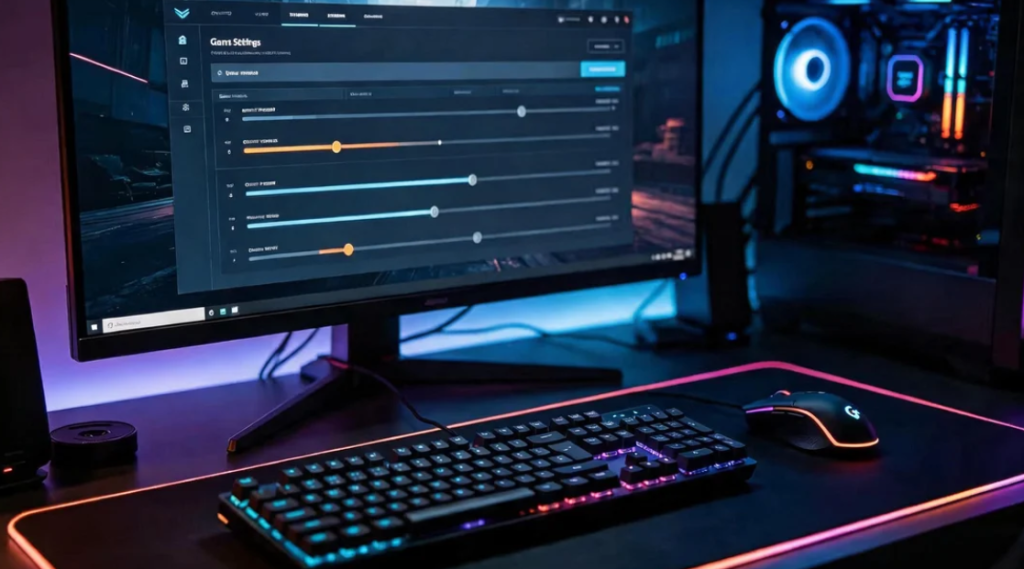
Gamer tuning game graphic settings inside PC game menu, clean background, blog illustration, no text
Adjusting in‑game graphics settings to solve stuttering problem
Final thoughts
Game stuttering can come from many sources. You do not have to buy brand‑new hardware immediately. Start with driver updates, closing background software and adjusting graphic settings. Most stuttering problems can be solved by software tweaks. If stuttering still appears after trying all these steps, you may need to check whether your CPU or GPU cannot keep up with this specific game.